Articles and Guide
Welcome to our Odoo Articles & Guides section, your go-to resource for learning how to set up, customize, and optimize your Odoo system. Whether you're just getting started or looking to fine-tune advanced features, these step-by-step guides are designed to help you streamline your business operations using Odoo’s powerful tools.
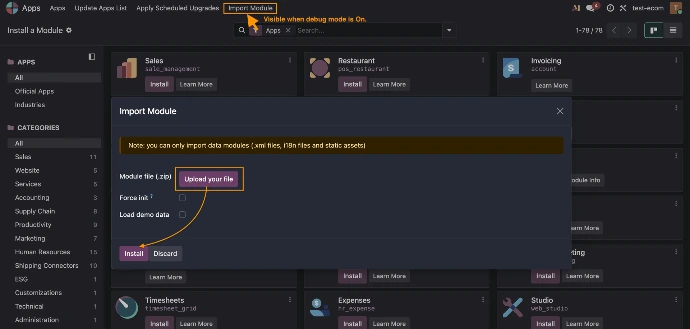
How to Install a Module on Odoo SaaS
Odoo SaaS makes it easy to add functionality through apps (modules) without any technical setup.
Steps:
- Log in to your Odoo SaaS database.
- Go to the Apps menu.
- Use the search bar to find the module you want (e.g., Sales, CRM, Inventory).
- Click on the module.
- Press the Install button.
- Wait a few seconds for the installation to complete.
Tip: Make sure you're in developer mode if you want to see all available apps and technical modules.
Want to install Third-Party module?

How to Configure Multiple Shipping Methods
Setting up multiple shipping methods helps you offer flexibility to customers.
Steps:
- Go to Inventory → Configuration → Delivery Methods.
- Click Create to add a new shipping method.
- Enter the method name (e.g., Standard, Express).
- Choose a provider (fixed price or third-party like carriers).
- Set pricing rules and delivery conditions.
- Repeat to add more methods.

How to Configure Warehouse
Warehouse configuration is essential for managing stock locations and operations.
Steps:
- Go to Inventory → Configuration → Warehouses.
- Click Create.
- Enter warehouse name and short code.
- Configure incoming and outgoing shipment settings.
- Define locations (stock, input, output).
- Save your setup.
Tip: You can manage multiple warehouses for different regions or business units.