How to Install a Module on Odoo SaaS
Setting up a module in Odoo SaaS is straightforward when you follow these steps.
If you want to test changes safely, create a duplicate of your database before installing new modules. This way, you can experiment without affecting your live data. Use the 'Duplicate Database' option under the database management section. Test everything in the copied environment first, then apply changes to your main database once you’re confident.
Create a duplicate database to Test the module.
- Open the database management.
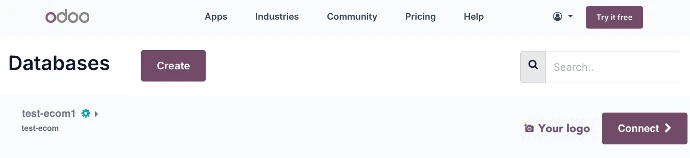
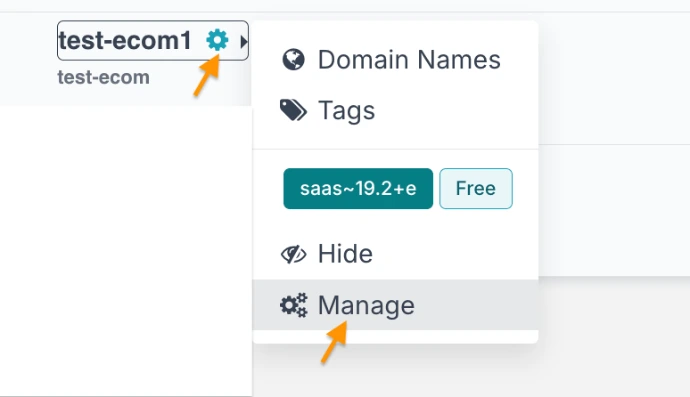
- 2. Click on Manage.
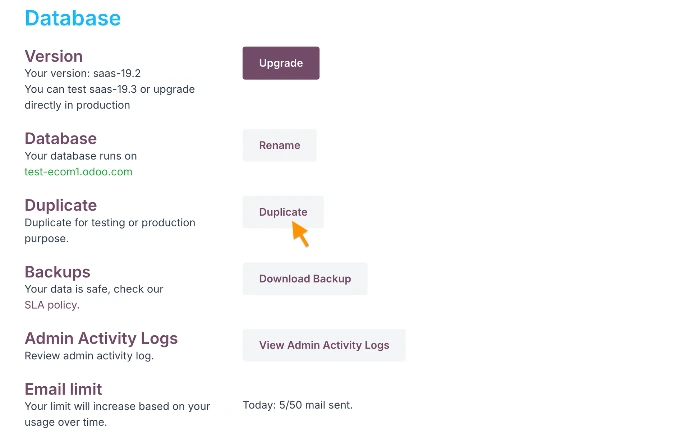
- 3. Duplicate
Install a Third-Party Module on Odoo SaaS
Important: Odoo online has limitations over the support for third party modules, xml and .js files are allowed.
Step 1: Activate Developer Mode
- Open Settings.
- Scroll to the bottom of the page.
- Click Activate the developer mode.
Step 2: Open the Apps Menu
- From the main dashboard, navigate to the Apps application.
Step 3: Import the Module
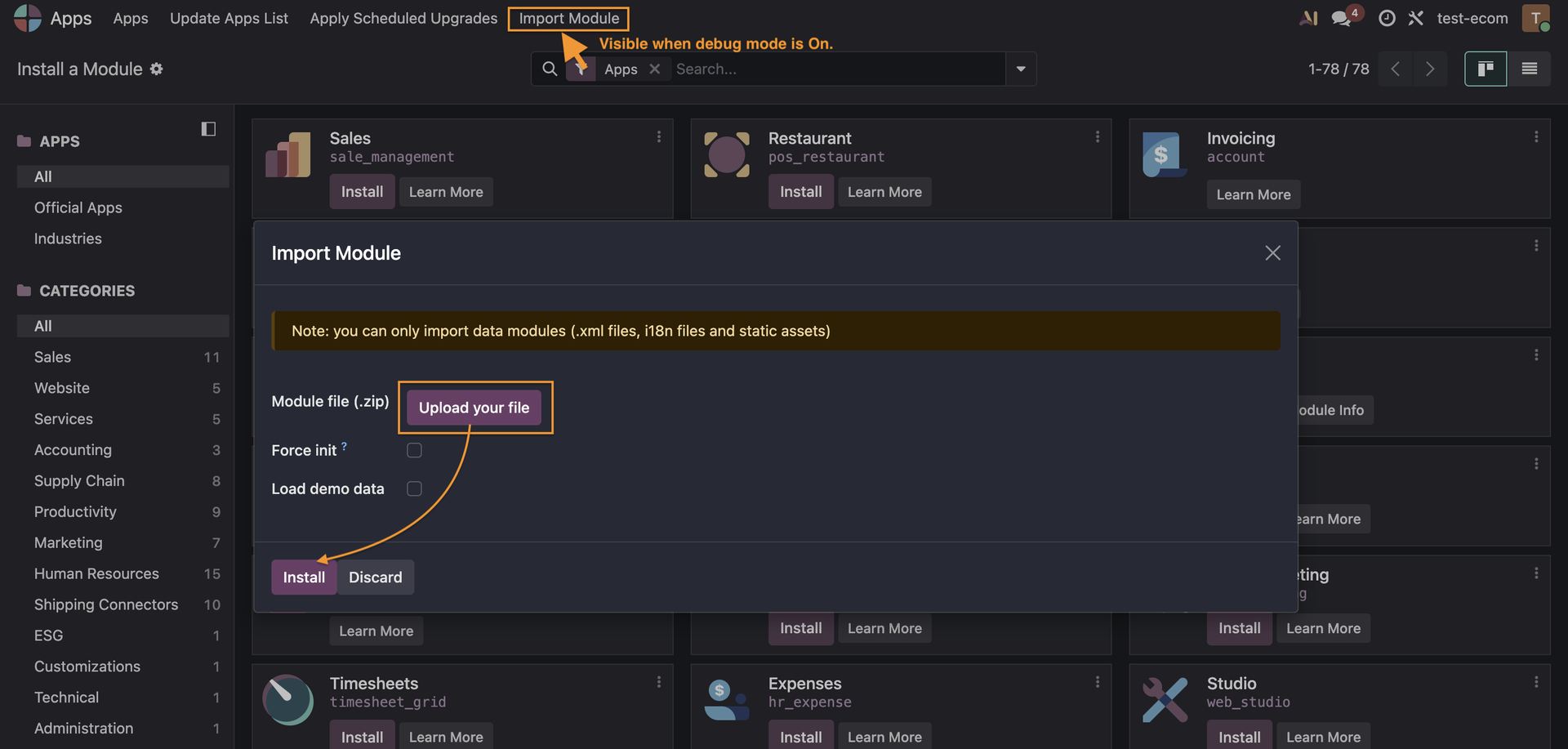
- In the Apps menu, click Import Module.
- The Import Module wizard will open.
Step 4: Upload and Install
- Click Upload your file and select the module's .zip file from your computer.
- Once the file has been uploaded, click Install.
- Wait for Odoo to complete the installation process.
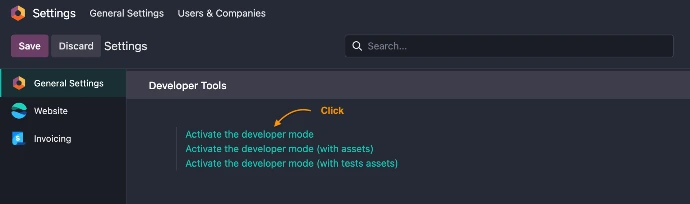
Activate the Developer Mode
Go to settings and activate the developer mode.
Go to Apps Menu
Click on Import Module. Upload the .zip file and click to Install.